
Course sites are empty and inactive by default, which prevents students from accessing unused courses. To ensure a course site is active and available for the start of the semester, instructors must make courses “Active” for students to access the course in Brightspace. The default start and end dates are based on the academic calendar; no start or end date input is required.
Tag: activate course
Blog Posts including information on how to set course dates, and activate a course in Brightspace
Adding/Editing Restrictions Dates, and Manage Dates
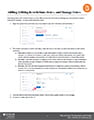 Associating dates with content release is a very effective tool for instructors to manage pace and minimize content overload for students. Release Conditions for a module are grouped with date restrictions, but they can also be applied to assessment items such as quizzes, assignments, and surveys. The advantage of adding a release conditions is that they allow students to access specific materials based on criteria that is not related to date. The manage dates tool gives instructors the ability to efficiently bulk edit and offset the date restrictions of each aspect of their course, such as discussion topics, assessments, announcements, and modules. This tool also gives instructors the option to edit the start and end dates of the course. This is very useful for instructors who wish to give students early or prolonged access to the course materials before the course has started or after the course has finished.
Finding Your Brightspace Course
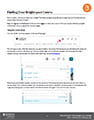 Each semester, new course spaces are created. The following steps will guide you through how to find these courses, and pin them for ease of access.
End of Semester Reminders from ETD
As we near the end of the semester and instructors work to prepare final assessments and grade student work, Educational Technology & Design can offer assistance along the way.
Final Assessments
- Need help reviewing your Brightspace quiz or exam settings? Email etd@dal.ca for assistance; we’d be happy to look over quiz or exam settings and catch any potential problems before released to students.
- Is Respondus LockDown Browser right for you? We can advise on best-practise use and provide suggestions with how to best prepare your students for using Respondus. Read our blog post https://edtechtruro.edublogs.org/2021/03/09/what-is-respondus-lockdown-browser-and-when-should-it-be-used/ and/or get in touch with us (etd@dal.ca).
Dalhousie Letter Grade
- Before submitting grades to banner, this blog post discusses displaying the Dalhousie letter grade in the Brightspace gradebook https://edtechtruro.edublogs.org/files/2016/04/Brightspace_Final-Grade-Scheme-18vsu7b-186ag8d.pdf.
- For your convenience, the document “Submission of Grades” from Enrolment Services can be accessed directly – https://edtechtruro.edublogs.org/files/2021/12/Grade-Submission_Faculty-Support_12_APRIL_2017.pdf
Winter 2022
For instructors already keen to work on their winter courses, some of the things you can do now are covered in our Semester Start Checklist (https://edtechtruro.edublogs.org/2021/08/20/semester-start-checklist-for-brightspace-courses/). Namely, the list includes:
- Copying course content
- Activating the course and setting dates
- Formally requesting the cross-listing of multiple course sites
- Preparing to reuse Panopto videos
- Preparing to reuse Collaborate Ultra recordings, and
- Adding users (not on the list but our blog post (https://edtechtruro.edublogs.org/2021/05/20/adding-users-to-your-course-in-brightspace/) runs through the steps.
Last but not least, ETD is again offering a Panopto Video Audit for instructors who wish to reuse Panopto videos. Please get in touch with us as soon as possible to take advantage of this service! Email etd@dal.ca to get your name on our list. Visit our blog post (https://edtechtruro.edublogs.org/2021/07/30/successful-reuse-of-panopto-videos/) for more information.
Update from ETD for Fall 2020 Instructors
With the start of classes just around the corner, we’d like to remind instructors of some important items, below. The ETD team is here to support you throughout the term as you continue to develop and deliver your online courses.
Semester start
- Instructors must make sure that they make their course active before it will be available to students.
https://edtechtruro.edublogs.org/2018/06/25/making-your-course-available-to-students/
- First impressions are important – all instructors are encouraged to post a syllabus (course outline), a welcome/introduction message, and at least one module/week of content for the first day of classes. If you need help with adding any of these items to Brightspace, please contact us immediately.
- Please note that enrolment changes (add/drop) can take up to one business day to be reflected in Brightspace.
Technology needs
- If you have any teaching-related technology needs, please contact Brian Lesser (brian.lesser@dal.ca) to determine if special funding might be available to support you. We are also able to loan certain items for instructor use during the semester.
- A professional videographer can now be made available for faculty who may need assistance with creating professional-quality video content. Please contact Brian Lesser (brian.lesser@dal.ca) to discuss further.
Builder support
- After a very busy and successful summer supporting instructors, our Course Builder program will be changing slightly.
- Builders will still be available to help instructors design/build their Brightspace course sites, or make changes, but we ask that you email etd@dal.ca to request this work, rather than emailing your Builder directly.
Communication & Contact Info
- Email:
- Email etd@dal.ca to reach the full ETD team for general help, training, builder assistance, and support. An individual team member will respond to you as quickly as possible.
We wish everyone a successful semester and we are here to help and support you along the way!
Sincerely, the ETD team:
Brian Lesser (Manager) – brian.lesser@dal.ca
Sondra Mantle (Instructional Media Designer) – sondra.mantle@dal.ca
Matt Goodman (Learning Technologies Specialist) – matt.goodman@dal.ca
And additional part-time builders, working behind the scenes and ready to help
Making Your Course Active & Available to Students
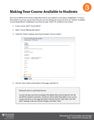 Prior to each semester, course spaces are created empty and inactive for each course in the academic calendar for the upcoming semester. To prevent students from seeing unused courses, each course is set to “inactive” by default. To allow students to see the course in Brightspace, Instructors must make their courses active (available to students). Once activated, courses will open the first day of classes, unless you modify the start and end date. This can be done by going into course admin, course offering information, and scrolling to bottom of the page. Instructors can adjust the start date to suit their needs.