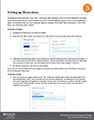
Setting up Discussions

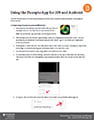
Link to PDFThe Brightspace Discussion tool is very useful in enabling student interaction within online and blended environments. To set up discussions, forums must be created first. A forum exists to organize or group similar or recurring discussion topics. For example, to set up a weekly discussion, start by creating a forum titled “Weekly Discussions”. Within that forum, you would have weekly “topics”.

Setting up Discussions [PDF]
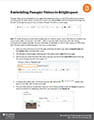
How to Link Panopto Videos in Your Course

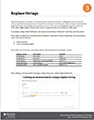
Link to PDFTo ensure your videos are available to all students, the instructions available in the link below outlines the process of adding a Panopto-housed video to ensure ease of access to all users. You do not have to use Panopto for recording, but it is strongly recommended to use the system for embedding videos in your course.

How to Link Panopto Videos in Your Course [PDF]

Note: factors such as bitrate, aspect ratio, file size, and video length can all impact the time it takes for a video to upload and process. If you are uploading multiple videos at the same time, expect increased delays. This is simply the nature of working with video files. Please allow adequate time for this process.

Panopto Folders and Sharing Videos from your personal folder

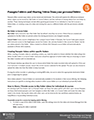
screenshot thumbail of Panopto folders and sharing videosPanopto offers several ways videos can be stored and distributed. This article will explore the differences between where videos can be stored (i.e. My Folder or Course Folders), and the methods of sharing videos from one folder to another. These sharing techniques include either granting permissions for an individual or class list to access a folder/video, or creating a copy of a video and moving the copy to a different folder with the permissions already intact.

Panopto Folders and Sharing Videos from your personal folder [PDF]

The Announcements Tool and Widget

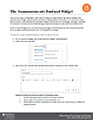
Link to PDFWhen you first log in to Brightspace, one of the first things you might notice on the main homepage is the Announcements widget. Announcements periodically releases pertinent information to all users of the system. Each course also comes with the Announcements widget built into the course homepage. Although it is possible for instructors to remove, we recommend leaving it in place for its value as a class-wide communication tool.

Similar to how all widgets work, the Announcements widget is a direct window into the Announcements Tool. When you add a new Announcements item, it is displayed in the widget.

The Announcements Tool and Widget [PDF]

Providing Restricted Access Through OneDrive

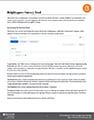
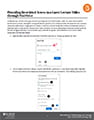
Link to PDFTo alleviate any concerns from guest lecturers providing lecture content (videos, slides, etc.) who wish to restrict access to their content, sharing files through OneDrive is possible. This method will allow the students in the course to view a document linked in Brightspace but stored in OneDrive, with the caveat that students will have zero ability to download, edit, or interact with the document. These conditions can be revoked at any time by the content owner (in this case, the guest lecturer), or an automatic expiry date can be applied.

Restricted Access through OneDrive [PDF]